


Agents in Slack: Your AI Team Members Just Joined the Channel

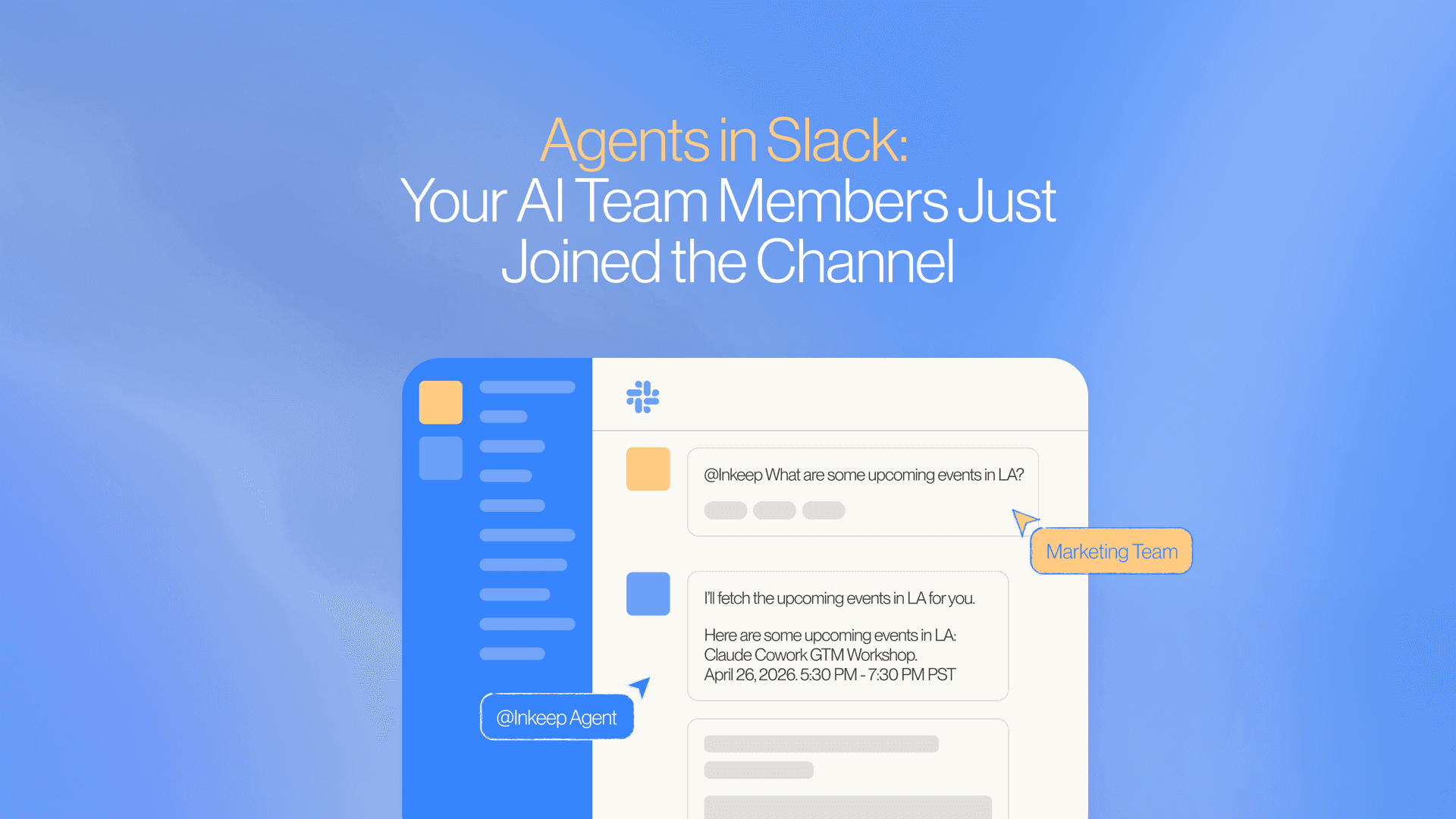
Inkeep agents now live in Slack. Assign different agents to different channels, get full thread context, and approve tool actions — all without leaving your workspace.
Mention @Inkeep in any Slack channel or DM and an agent responds in-thread with its own tools, knowledge, and instructions
Introduction
You @Inkeep in a Slack channel. The agent responds in the thread — one you've actually configured with your own tools, knowledge, and instructions.
That's the core idea behind the Slack Work App, and it's available now for Inkeep Enterprise.
Not just one agent for the whole workspace
The first thing worth understanding is that this isn't a single bot bolted onto your Slack workspace. You can assign different agents to different channels.
Your #support channel gets the support agent. Your #engineering channel gets the engineering agent. Each one has its own tools, system prompt, and personality.
| Priority | Source | Scope |
|---|---|---|
| 1 | Channel default | Only that channel |
| 2 | Workspace default | All channels without a channel default |
If a channel doesn't have a specific agent assigned, it falls back to the workspace default — so there's always something there. Use /inkeep status in any channel to see which agent is active and how it was resolved.
Thread context changes everything
Here's the thing that actually surprised me: thread context.
If you mention @Inkeep inside an existing thread, the agent receives the full conversation as context. You can have a long team discussion, then simply tag the agent and ask: "What are the action items here?"
It gets it, because it read the whole thread.
This unlocks patterns that a standalone chatbot can't touch:
- Summarize a decision thread after a long back-and-forth
- Draft a follow-up message based on what was discussed
- Answer a question that requires context from earlier in the conversation
- Tag
@Inkeepwith no message and the entire thread becomes the question
Agents ask before they act
Some agents have tools that do real things — hit APIs, create tickets, update records. When that happens, you get Approve and Deny buttons right in Slack.
The agent doesn't run off and do things without asking first. Only the person who started the conversation can approve or deny, and if you deny with a reason ("I want Tokyo, not London"), the agent adjusts.
This is human-in-the-loop done right: lightweight enough to not break your flow, explicit enough to trust the agent with real-world actions.
Agents can act on Slack too
Everything above is about talking to your agent. But it also works the other way around.
The Slack MCP tool gives any agent the ability to act on Slack:
- Post to a channel — send messages to any channel the bot is a member of
- DM a user — reach out directly to someone
- Look up users — find people by name, email, or user ID
Imagine an agent that monitors your CI pipeline. When the pipeline fails, the agent can DM the person who pushed the commit. Or an agent that posts a daily standup summary to #engineering every morning.
The Slack MCP tool is configured separately from the Work App — you add it to any agent as an MCP server, then control which channels it can post to and whether it can send DMs.
Getting started
The Slack Work App is available now for Inkeep Enterprise.
Setup takes a few minutes: install the app to your Slack workspace, configure your workspace default agent, and optionally assign agents to specific channels. The full walkthrough is in the installation guide.
For the Slack MCP tool, head to MCP Servers in the dashboard, select Slack from the Work Apps tab, and configure channel access. Full details in the MCP tool docs.
About the author

Frequently Asked Questions
Mention @Inkeep in any channel or DM, or use the /inkeep command. The agent responds in a thread using whichever agent is configured for that channel.
Yes. Admins can assign a specific agent to each channel via the dashboard. Channels without a specific agent fall back to the workspace default.
Yes. When you mention @Inkeep inside an existing thread, the agent receives the full conversation history as context. You can ask it to summarize, extract action items, or answer follow-up questions.
Slack shows Approve and Deny buttons inline. The agent waits for your response before proceeding, so it never takes an action without your explicit approval.
Yes. The Slack MCP tool gives any agent the ability to post to channels, send DMs, and look up users. This enables workflows like notifying a developer when a CI pipeline fails.